Introduction
This update focuses on improving usability and control across Quantum, making everyday operations simpler and more transparent. These improvements are all designed to help you work more efficiently.
Redesigned payment detail view
The Payment Detail screen has been redesigned for better readability and efficiency.
The new layout improves visibility of key information, with a clearer structure for field labels and values, and a more intuitive arrangement of on-screen elements.
Instead of opening in a modal, it now opens in a dedicated window full-screen, allowing users to easily share the URL and access the payment detail directly.
The new layout is organized into modular sections, making the information clearer and easier to navigate:
Header module: Displays the payment amount and status. If actions are available for the payment, they are shown on the right-hand side of this section.
Processing & Settlement module: Includes key details on processing times and settlement information.
Payment information module: Shows all payment data in full and highlights the PH ID, making it easier to copy.
Debtor, Creditor & FX modules: Displays details about payer and payee, and any FX-related information, if available.
Audit module: Keeps the same clickable audit details as before.
Related Payments module: Appears whenever there are related payments linked to the selected transaction.
User Activity module: Now includes a toggle that allows users to show Payment visualizations. By default, these are hidden, focusing only on user actions.
Supplementary Data module: Displays any additional data when available.
Additionally, all populated fields are now clickable and copyable, enabling faster access to key references and improving overall usability.
This new structure provides a cleaner, more intuitive view of each payment, improving accessibility, shareability, and overall readability.
Note: please be aware that Action buttons that appears on the top right section of the screen will only be shown if
The user has permission to action them
If the payment has actions available to apply
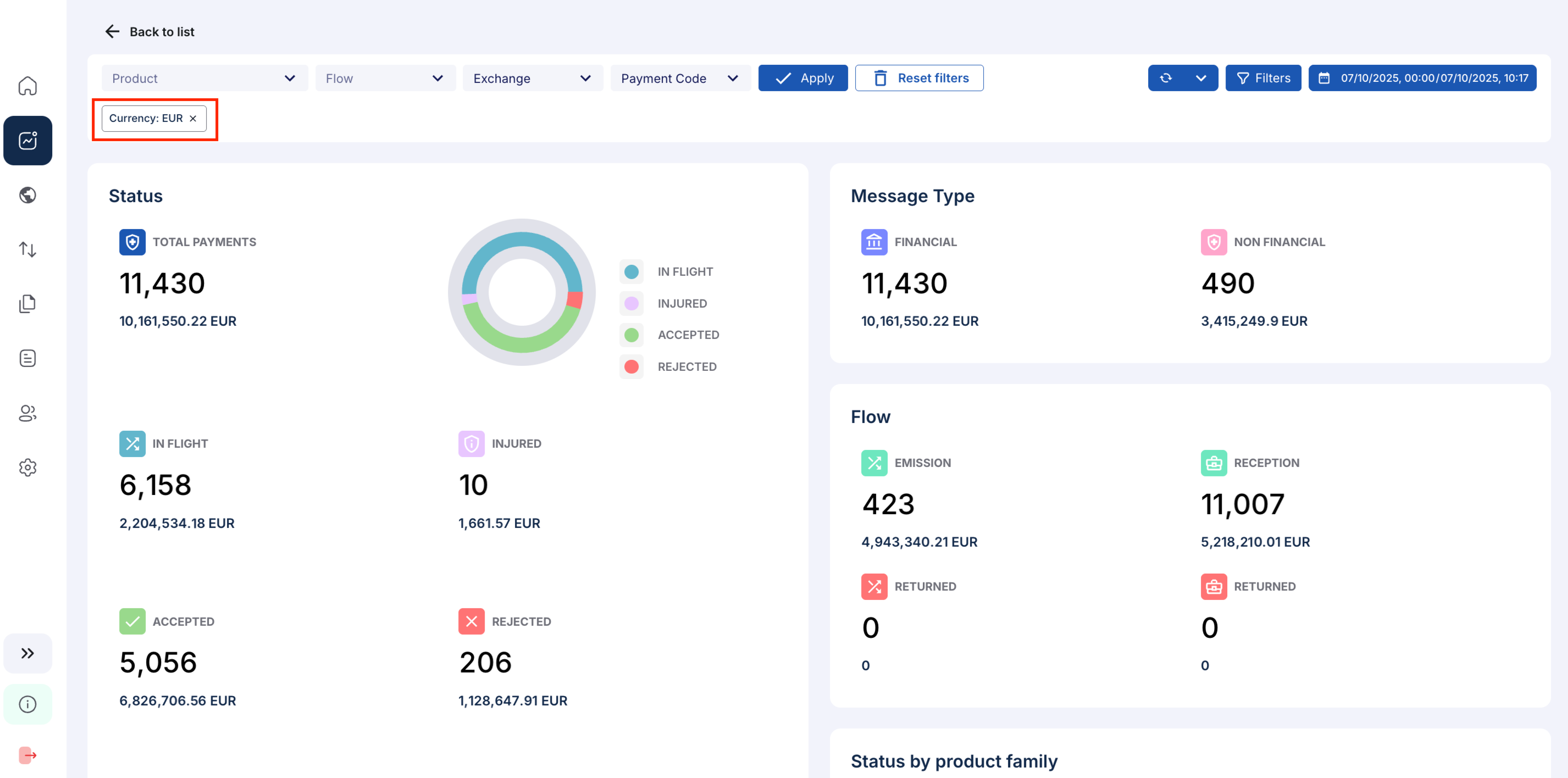
Default currency by tenant in Operational Dashboard
To improve clarity when viewing multi-currency data, the Operational Dashboard now applies a default currency based on your tenant configuration.
Users can still switch manually to other currencies when needed, but the dashboard will now load with the tenant’s default currency pre-selected.
User management – export capabilities (For user management admin users only)
A new Export option has been added in the User Management section.
Admin users with the appropriate permissions can now export a list of users, including:
Which users exist in Production
Their associated tenants
The last role they held when logging in
This enhancement helps administrators maintain visibility and control over user access.
How to export users?
Go to User management section
.png)
Filter by selecting the tenants you want to see/export users from, then click apply.
Click on Export button, top right of the results table
It generates and download an xlsx file with all the details on users and their status in the system.

Operators can now export their personalized views and share them with colleagues.
Export and import of custom views
Export view: available in the “Personalized views” menu. It generates a file containing the selected filters and column configuration.
Import view: allows users to upload a shared view and add it to their own list.
Imported views count toward the maximum number of views allowed.Note: The export option will be disabled if you already have more than 10 saved views.
How to import a custom view?
Click on Add view

Click on Import

Click on Drop your file or Drag/Drop your Custom view file into the section.

Click on Import
A success message should be shown, and the new view created as a new custom view

How to export a custom view?
Go to the custom view you want to export, and click on the three dots icon next to the name

Click on Export button

It generates a json file, downloaded to your laptop, that you can share with anyone in your team

Improved login error messages
We’ve refined the login error handling to provide clearer feedback:
If a user has no tenant assigned, or
If a user lacks the necessary permissions,
the system now displays a specific error message explaining the reason for login failure.